Fix: Microsoft Recall Is Eating Your Disk Space
You open Storage settings to find where 100 GB went, and Recall is near the top of the list. Or the opposite happened. Your drive filled up for unrelated reasons, and now Recall's timeline stops dead three weeks ago with no error and no notification.
Both are Recall working as documented. The defaults are just larger, and quieter, than most people expect.
TL;DR
- Left alone, Recall allocates 25 GB on a 256 GB drive, 75 GB on 512 GB, and 150 GB on 1 TB or larger.
- You can lower that in Settings. On Home and Pro that dropdown is the only control you get, because the Group Policy version is Enterprise and Education only.
- Recall needs 50 GB free to turn on, and pauses snapshot saving on its own once free space drops under 25 GB. It does not announce this.
- Not every mystery folder is Recall. A separate Windows 11 bug ate up to 500 GB on some machines through mid-2026.
What Microsoft actually documents
The numbers come straight from Manage Recall for Windows clients on Microsoft Learn, last updated 2025-12-10: "25 GB is allocated when the device storage capacity is 256 GB. 75 GB is allocated when the device storage capacity is 512 GB. 150 GB is allocated when the device storage capacity is 1 TB or higher."
The same page states the storage floor twice, once as a requirement and once as a behaviour. "To enable Recall, you need at least 50 GB of space free." And then, "Saving snapshots automatically pauses once the device has less than 25 GB of storage space."
That second line is the one that costs people history. Recall does not warn you that it stopped. It has nothing to show for the days your drive was full, and there is no way to reconstruct a snapshot that was never taken.
The consumer page, Manage your Recall snapshots and disk space, lists what each drive size offers. A 256 GB machine picks 25 GB or 10 GB. A 512 GB machine gets 75, 50, or 25. A 1 TB machine gets 150, 100, 75, 50, or 25. When the cap fills, "the oldest snapshots are deleted first", so it is a rolling window rather than a hard stop.
Why this keeps biting you
Three things stack up.
First, the default scales with your drive, not with your habits. Buy a 1 TB laptop and Windows decides 150 GB of it is reasonable for screenshots. That is defensible for a feature whose whole value is depth of history. It is also a seventh of the disk.
Second, the retention controls are split across editions. The Learn page is explicit that both the storage-size policy and the duration policy, which offers 30, 60, 90, or 180 days, carry the note "This setting applies only to Enterprise and Education editions of Windows." On Home and Pro you get the size dropdown and no age-based expiry at all. If you wanted "keep 90 days and nothing older," a consumer edition cannot express that. You pick a smaller box and let the oldest snapshots fall out the back.
Third, disk pressure turns a capture tool into a silent no-op. Recall's allocation and your free space are separate numbers, and the second one wins. A game install or a bloated system folder can push you under 25 GB and stop capture without touching Recall's own cap.
That last one deserves a warning. Through the first half of 2026, a Windows 11 bug let CapabilityAccessManager.db-wal grow without bound. Windows Central reported cases reaching 500 GB, and Windows Latest tracked the fix landing in July 2026's KB5101650 after a June optional update. Plenty of people blamed Recall for space that file had taken, and plenty of Recall timelines went quiet because of it. Check what is actually large before you delete months of history.
Fix it in Windows first
- See the real number. Settings, then Privacy & security, then Recall & snapshots, then Storage. This shows space currently used by snapshots, which is usually well under the allocation. The allocation is a ceiling, not a reservation.
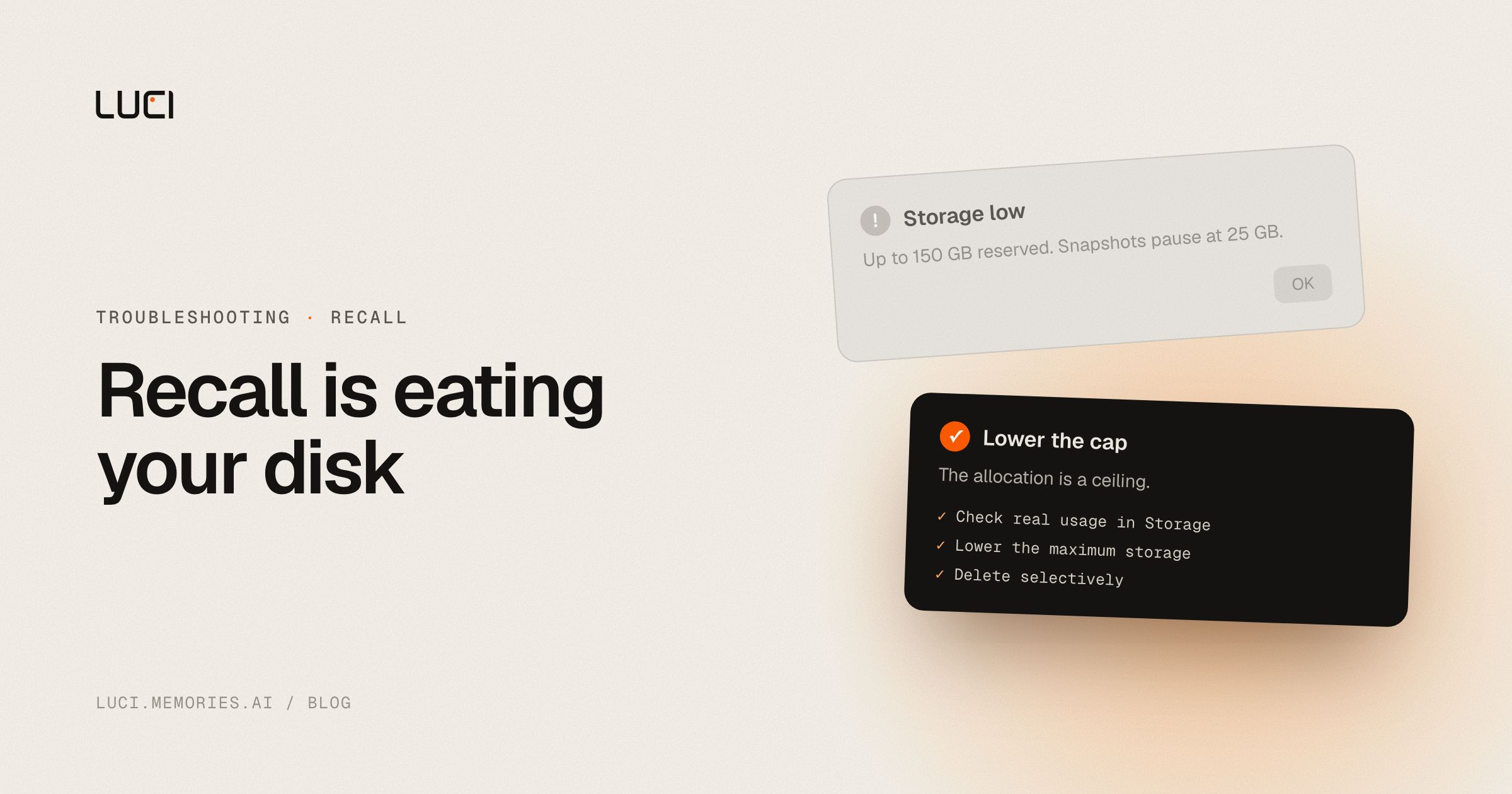
- Lower the cap to something you would miss. Same page, the maximum storage dropdown. On a 1 TB machine, dropping 150 GB to 50 GB is the single highest-value change here, and 50 GB is still months of typical use.
- Check free space, not just Recall's share. Settings, then System, then Storage. If you are anywhere near 25 GB free, Recall has already paused or is about to. Clear space first, then confirm the timeline resumes.
- Rule out the storage bug before you delete anything. Look at
C:\ProgramData\Microsoft\Windows\CapabilityAccessManager\. If the.db-walfile is tens of gigabytes, install current cumulative updates rather than wiping your snapshots. - Delete selectively instead of resetting. The Recall settings page deletes the past hour, 24 hours, 7 days, or 30 days, and clears everything from one app or one website. Resetting Recall is the sledgehammer. Reach for it last.
- Filter the noisy apps. Snapshots you never search are pure storage cost. Adding a full-screen app you use for hours to the filter list trims the timeline where it is thickest.
- On a managed device, ask IT for the duration policy. On Enterprise or Education, "Set maximum duration for storing snapshots used by Recall" gives you the age-based expiry consumers cannot set.
Stay or switch
| Job | Stay with Microsoft Recall | Switch to LUCI |
|---|---|---|
| You want an OS-native timeline and can spare 25 to 150 GB | Yes | LUCI is a separate app, runs on far more hardware |
| You want age-based retention on Home or Pro | No, that policy is Enterprise and Education only | Yes, retention is a normal in-app setting |
| You need capture that does not quietly stop at a storage threshold | No | Yes, and low-space conditions surface in the app |
| You want meetings and calls in the same searchable history | No, Recall has no audio at all | Yes, screen and meeting audio together |
| You are on a Mac, or any PC without a 40 TOPS NPU | Not possible | Yes |
What to do next
If the fix here is "cap it at 50 GB and move on," do that and stop reading. Recall is fine at that job on supported hardware.
If you got here because your timeline had a hole in it, the storage floor is worth sitting with. A capture tool that pauses without telling you is one you have to audit, and the audit only ever happens after you needed the thing that is missing.
LUCI keeps your day on the computer, screen and meetings both, with on-device understanding, on Windows and Mac, on hardware that never qualified for a Copilot+ badge. Setup is in install on Windows. For the side-by-side, see LUCI vs Microsoft Recall, the Microsoft Recall alternatives list, or the 2026 roundup. If Recall is not just full but refusing to open, that is a different checklist.
Frequently asked questions
How much disk space does Microsoft Recall actually use?
Less than it reserves, usually. Microsoft allocates a ceiling based on drive size, 25 GB at 256 GB capacity, 75 GB at 512 GB, and 150 GB at 1 TB or larger, but that space fills gradually. The Recall & snapshots settings page shows what is in use today. Real consumption depends on how much your screen changes, because Windows takes a snapshot when content differs from the previous one, so a day of reading one document costs far less than a day of switching between twenty windows.
Why did Recall stop saving snapshots on its own?
Almost certainly free disk space. Microsoft documents that saving pauses automatically once the device has less than 25 GB free, and this is separate from Recall's own allocation. You can be well under your snapshot cap and still be paused because the drive as a whole is full. Free up space above the threshold and capture resumes. Check Settings, then System, then Storage, and note that a Windows 11 bug in 2026 inflated a system file to hundreds of gigabytes on some machines, which was enough to trigger this by itself.
Can I make Recall delete snapshots older than 30 days?
Not on Windows Home or Pro. The maximum-storage-duration policy that offers 30, 60, 90, or 180 days applies only to Enterprise and Education editions, per Microsoft's own documentation. Consumer editions get the size cap instead, and when that cap fills the oldest snapshots go first, so a smaller allocation is the indirect way to shorten your history. You can also delete the past hour, day, week, or month by hand from the Recall settings page.
Is deleting Recall snapshots the same as turning Recall off?
No, and mixing them up is how people lose more than they meant to. Deleting snapshots clears what is already saved and leaves capture running, so the timeline starts refilling. Turning off "Save snapshots" stops new capture but leaves existing snapshots in place. Resetting Recall from Advanced settings does both, and that is the option for a timeline that is misbehaving rather than merely large.