Give Grok Bot a Memory of Its Own Screen
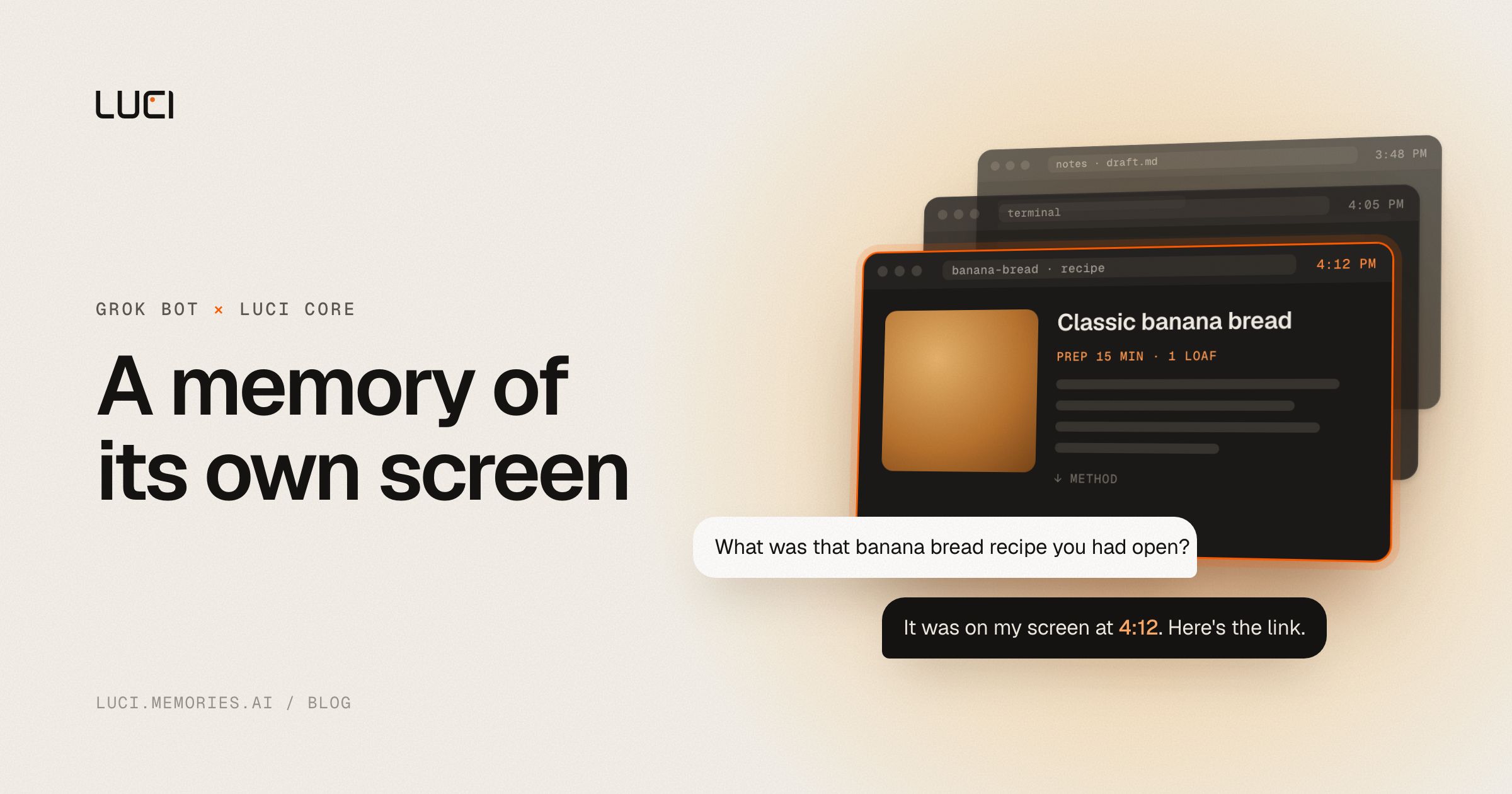
A Grok Bot does its work on its own cloud computer. It opens pages in a browser, reads them, runs things in a terminal. Ask it an hour later what was on one of those pages and it usually can't tell you. The page has dropped out of its context, and nothing wrote it down.
LUCI Core is the fix. It is LUCI without the app window, a small service for Linux that runs on the bot's computer, keeps a history of what is on each screen, and lets the bot search that history. You set it up by pasting one prompt into the bot.
TL;DR
- Paste the prompt below into your Grok Bot. It installs LUCI Core, connects it to itself, and checks that it can read its own screen.
- From then on, ask the bot about anything it had on screen. It looks it up instead of guessing.
- LUCI only sees what is drawn on a screen. Pages the bot fetches without opening a window leave no trace.
What you can ask afterwards
These are the kinds of questions we asked our own test bots. None of them mention LUCI.
- "What was that banana bread recipe you had open? Send me the link and the oven temperature."
- "Which apps were on your screen in the last hour?"
- "What did you work on between 4:05 and 4:20?"
- "What's on your screen right now?"
The banana bread one is a good test. Our bot went to its screen history by itself, read the recipe's link off the saved screen, and said the oven temperature had been below the fold, so it was never on screen and it couldn't say. That's what you want from it. When the history doesn't have something, the bot says so.
Set it up with one prompt
Open your bot and paste this, as is:
Install Luci on your computer so you can see and search what has been on its screens. Show me the output of each step. If a step fails, stop and show me; don't work around it.

1. Install it:
   curl -fsSL https://luci.memories.ai/install.sh | sh
2. Connect it: add an MCP server exactly as the installer's "As one JSON block" line says, with your name after "grokbot:". If you can't add MCP servers, skip this and use the luci command the installer printed instead.
3. Check it: open a window on your screen that shows the text LUCI TEST 4821. Use whatever is installed (a terminal such as xfce4-terminal, a text editor, or a local page in your browser); if one program is missing, try another, that is not a failure. Wait 5 seconds, then call the screen_now tool (or run the printed "luci now" command). It should return LUCI TEST 4821.
   If the installer said no display was found, skip this check and tell me that Luci is installed but this computer has no screen for it to see.

From now on, when I ask what is or was on your screen, what you did earlier, or to find something you saw before, use Luci (screen_now, full_text_search, usage_summary, or the luci command) instead of guessing. Luci only sees what is drawn on a screen, so open browsers and apps in a window, not headless.
Here is what the bot does with it.
- It installs LUCI Core. The installer downloads the latest release, checks it against the published checksums, and starts it. There is nothing else to install first. On Grok Bot it keeps the history in
/workspace/.luci, so the history comes along when your bot moves to a new machine. - It connects LUCI to itself. The installer prints a ready-made MCP server entry, and the bot adds it with its own name in it (
grokbot:<bot-name>). That label is how you tell later which bot asked what. - It proves it works. It opens a window showing
LUCI TEST 4821and reads it back through LUCI. If that line comes back, you're done.
In our tests a brand-new bot with no other instructions did all three steps on its own. The last paragraph of the prompt matters too. It is what makes the bot reach for its history later without being told.
Doing it by hand
If you'd rather run it yourself, open a terminal on the bot's computer:
curl -fsSL https://luci.memories.ai/install.sh | sh
The installer finishes by printing the MCP entry with the real paths filled in. It looks like this:
{"command": "/home/<user>/.luci/bin/luci", "args": ["mcp"], "env": {"LUCI_CLIENT": "grokbot:<bot-name>"}}
Add it as a stdio MCP server for the bot, or paste it to the bot and ask it to add it.
If the bot will read Chinese pages, add the Chinese text pack:
curl -fsSL https://luci.memories.ai/install.sh | sh -s -- --ocr-lang zh
A few commands are handy in the bot's terminal:
luci now                      # what's on the screen in use, right now
luci search "invoice" --tr 24h  # search the last 24 hours
luci-core status              # is it running, which screens it sees
Some bots run each command in a fresh shell where luci isn't on the path. Then use the full path, ~/.luci/bin/luci. The installer prints whichever one works on that machine.
What LUCI can and can't see
LUCI keeps what is drawn on a screen, and nothing else. Most surprises come from that.
- Headless browsing is invisible. A headless Chrome or a Playwright script with
headless: truenever draws anything, and neither does terminal output nobody opened in a window. If you want the bot to remember a page, it has to open the page in a window. The prompt already tells it to. - Brief glimpses can be missed. LUCI saves a frame every few seconds and skips frames that look the same as the last one. A page that is up for only a second or two may leave nothing behind.
- An idle desktop is empty. If the bot has no window open, there's nothing to keep. That isn't an error.
- History lasts 7 days by default.
Where the history lives
The history stays on the bot's computer, under ~/.luci (on Grok Bot, /workspace/.luci). LUCI Core doesn't upload it anywhere. When the bot looks something up, though, the result becomes part of its conversation, and that goes to the model running the bot like everything else the bot reads. Keep that in mind before you point it at anything sensitive.
Updating and removing it
To update, run the install line again, or ask the bot to. It upgrades in place and keeps the history.
To remove LUCI Core:
curl -fsSL https://luci.memories.ai/install.sh | sh -s -- --uninstall
That keeps the history. Add --purge after --uninstall to delete the history too.
Frequently asked questions
Does it work on bots other than Grok Bot?
It works on any Linux computer (x86_64) whose apps draw on an X11 screen, so other cloud-computer bots and self-hosted agents work the same way. Bots that don't support MCP can use the luci command instead. If a bot's browser runs somewhere else and never draws on the bot's own machine, LUCI has nothing to see there.
Do I need to install Node or anything else first?
No. LUCI Core is a single executable, and the installer brings everything it needs. It only needs curl and tar, which cloud computers already have.
What happens when Grok Bot moves my bot to a new machine?
The history in /workspace/.luci moves with it. The first LUCI command on the new machine takes a couple of seconds longer while it sets itself up again, and then it carries on.
Does it support Wayland or ARM?
Not yet. LUCI Core needs an X11 screen today, and releases are x86_64 only.
Next
The full list of install options is in the LUCI Core releases repository. And if you want the same memory for your own computer, with your meetings included, that's the LUCI desktop app.