Fix: Otter Is Only Recording My Voice
You open the transcript expecting a conversation and find a monologue. Your questions are all there. The answers are not. An hour of client discovery reads like you talked to yourself in an empty room. The one thing you needed, what they actually said, is the part that never made it in.
This is the most mechanical failure in Otter. None of its causes are bugs, which is why restarting the app does nothing.
TL;DR
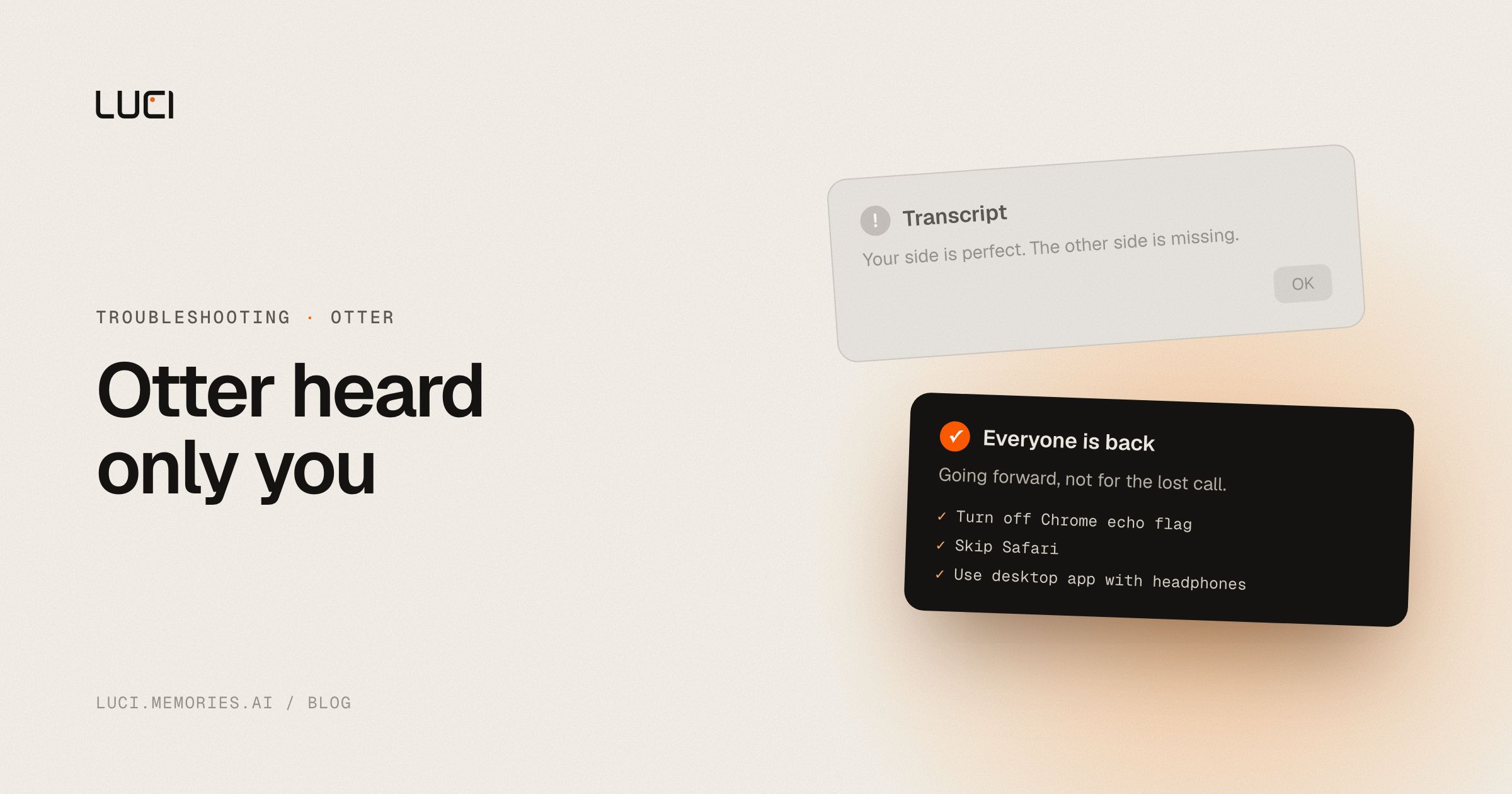
- Recording manually in a browser, Otter hears only what your microphone hears. Headphones mean your mic never hears the other people.
- Chrome has an experimental echo cancellation flag that strips your own speakers out of your own mic signal. It is on by default and it silences everyone but you.
- Safari cannot record playback audio at all. That one is Apple's rule, not Otter's.
- The desktop app or Notetaker fixes it going forward. Nothing recovers the call you already lost.
What people are saying
Otter documents this itself. Its Troubleshoot audio recording problems article, updated in late August 2026, has been marked helpful by 863 people, which is a lot for a support page nobody reads for fun. It carries a section titled, verbatim, "Otter is only recording my voice." The explanation is plain: "If you're wearing headphones, earbuds, or a headset, meeting or playback audio is sent directly to your headphones instead of your device's speakers. Because your microphone can't hear that audio, Otter may record only your voice."
The Chrome case gets its own article. "Chrome added an experimental feature, Echo Cancellation, to remove any sound played out of the speakers from the microphone signal on the same computer. When the experimental feature is enabled, the microphone will only pick up your voice." Then the line that matters. "All Chrome versions are affected."
Safari is worse and simpler. From the same troubleshooting page: "Apple prevents recording any audio playback (e.g., audio coming out of the device speaker) in the Safari browser... This is a limitation set by Apple."
Users find all this out afterwards. A one-star App Store review on 2026-08-21, titled "Did not record the entire meeting," reads: "The only thing that was recorded was the salutation." Another on 2026-08-23: "I've lost so much time and none of my meetings were recorded." Broader failures than the headphone case, same shape. They found out when they went looking for the notes, which is the worst possible time.
Why this keeps biting you
Otter has two capture paths, and it never makes you pick one on purpose.
Path one is manual recording in a browser or on your phone. It has one input, your microphone, which makes it a voice memo with transcription attached. Everything the other participants say has to leave your speakers, cross the air, and come back into your mic. Every layer built to kill that loop also kills Otter. Headphones break it physically. Chrome's echo cancellation breaks it in software. Noise suppression on Dell and HP laptops, on Krisp, and in the Teams client breaks it because those tools classify speaker output as background noise and strip it, exactly as designed. Safari refuses to carry it at all.
Path two is the desktop app or Notetaker. The desktop app taps system audio directly, so headphones stop mattering. Notetaker joins the meeting as a participant and takes the platform's own feed. That works, and it puts a visible bot in your call. The other half of that trade is in Otter bot joined the call.
So the failure is not random. It is what you get when you use the one-input path for a job that needs two. The tell is always the same. You wore headphones, or you hit record on a browser tab.
Fix it in Otter first
- Disable Chrome's echo cancellation flag. Go to
chrome://flags, search for "Echo Cancellation", set Chrome-wide-echo-cancellation to Disabled, relaunch, then go back and confirm it stuck. Do this first. It is the cause nobody guesses, and it applies to every Chrome version. - Stop recording meetings in Safari. Otter recommends Chrome or Firefox for manual recording. Safari will give you a clean transcript of yourself, forever.
- Use the desktop app when you wear headphones. It captures system audio, so the other side arrives at the source instead of through the air. On Mac, enable Otter under System Settings, Privacy & Security, Screen & System Audio Recording, then quit and reopen the app. Microphone permission and system audio permission are separate grants, and holding only the first is why the app looks like it is working.
- Turn off noise suppression on the call. Check the conferencing app, your headset software, Krisp, and any manufacturer audio utility. Anything labelled noise cancellation, echo cancellation, or reduced background noise counts.
- If you must record through a mic, take the headphones off. Speakers on, mic within a metre, no one talking over anyone. Ugly, and it works.
- Run a ten-second test before anything that matters. Play a video, record, read the transcript back. Every fix above is worth nothing if you check it after the meeting instead of before.
None of this recovers the call you already lost. Half a conversation does not reconstruct into a whole one. If Zoom or Teams recorded the meeting on their side, import that file into Otter and treat what you have as a draft.
Stay or switch
| Job | Stay with Otter | Switch to LUCI |
|---|---|---|
| Your team already lives in Otter's workspace and shared folders | Yes | No |
| You want capture that does not depend on which browser you clicked record in | No | Yes |
| You want both sides of the call captured while you wear headphones | Only via the desktop app or Notetaker | Yes, by default |
| You want everyone's audio without a bot appearing in the participant list | No, Notetaker joins as a participant | Yes |
| You are fine with meeting audio being processed in a vendor's cloud | Yes | LUCI processes on-device |
| You want past calls searchable together, not one transcript at a time | Partly | Yes |
What to do next
The reason 863 people voted on a support page about this is that the failure is invisible until it is permanent. Nothing on screen tells you the other half of the room is missing while it is happening.
LUCI captures both sides on your machine, every word, yours and theirs, with no bot in the participant list and no need to remember whether you have headphones in. The transcript does not land in a per-call file either. It joins your memory, so what someone said sits next to what was on your screen when they said it, and "what did they push back on in the last two calls?" resolves to one answer you can check.
Side-by-side in LUCI vs Otter, or the wider field in best Otter alternatives.
Frequently asked questions
Why does Otter only transcribe me and not the other people on the call?
Because manual browser recording has one input, your microphone, and something is stopping it from hearing the other side. Most often you are wearing headphones, so their audio never reaches the room. Next most often, Chrome's echo cancellation flag is stripping your own speaker output out of the mic signal. After that, you are in Safari, which Apple does not allow to record playback audio, or noise suppression on your laptop, headset, or conferencing app is filtering speaker audio out as background noise.
Does the Otter desktop app fix this?
Yes, for future recordings. The desktop app captures system audio directly instead of relying on your microphone, so headphones stop being a problem. On Mac you have to grant Screen & System Audio Recording permission specifically and restart the app. Microphone permission alone is not enough, and the app will happily record only you until you do.
Will Otter Notetaker capture everyone?
It will. Notetaker takes the meeting's own audio feed from Zoom, Google Meet, or Teams, so headphones, browsers, and echo cancellation stop mattering. The cost is that it joins as a visible participant, which some hosts block and some guests object to. That trade is covered in Otter bot joined the call.
Can I recover a meeting where only my voice was recorded?
Not from Otter. The other participants' audio was never captured, so there is nothing to re-process. Your options are the meeting platform's own cloud recording, if someone enabled it, or another attendee's notes. Import a platform recording into Otter and you get the full transcript. Otherwise, write down what you remember today, while you still remember it.